 blog
blog
What CAD Software Should Your Startup Actually Use?
Last Updated: October 24, 2026
Quick Summary
CAD software startups can choose between free tools like FreeCAD and Fusion 360's free tier, educational discounts, or startup programs from major vendors, all offering genuine capabilities without enterprise price tags. The right choice depends on your workflow, team size, and what file formats your suppliers need, not on feature count alone. Start with free or affordable software, validate your workflow, then upgrade only when you've identified a specific capability gap.
- Startup program eligibility typically hinges on company age, funding stage, revenue threshold, team size, and commercial-use terms, write down your graduation trigger before committing to a discounted license.
- Export every active project to neutral formats like STEP and DXF before switching tools; clean geometry and proper tolerances matter more than which software produced them.
- CNC machining requires watertight solids, dimensioned 2D drawings, and tolerance callouts; 3D printing prioritizes mesh quality and wall thickness suited to the printer and material.
- A well-prepared file from free software beats a sloppy file from professional software; file preparation and clear communication with your supplier matter more than the CAD seat you're in.
Table of Contents
- Why Expensive CAD Software Doesn't Have to Be Your First Choice
- Free CAD Software for Startups: What You Actually Get
- CAD Software Startup Programs and Educational Discounts
- FreeCAD vs SolidWorks: When Each Makes Sense for Startups
- CAD Software for CNC Machining and 3D Printing Workflows
- Choosing CAD Software: Workflow, Team Size, and File Compatibility
- Getting Your Design Ready for Production
- Frequently Asked Questions
Why Expensive CAD Software Doesn't Have to Be Your First Choice
Most startups think CAD software startups means choosing between unaffordable professional tools and sketching on napkins.
At VanderLab, we work with designers and makers turning rough ideas into production-ready files, and they all ask the same question: what CAD software should I actually use?
Free CAD software for startups is genuinely capable, educational discounts exist if you qualify, and startup programs from major vendors offer real savings.
Free CAD Software for Startups: What You Actually Get
Free CAD software doesn't mean compromised.
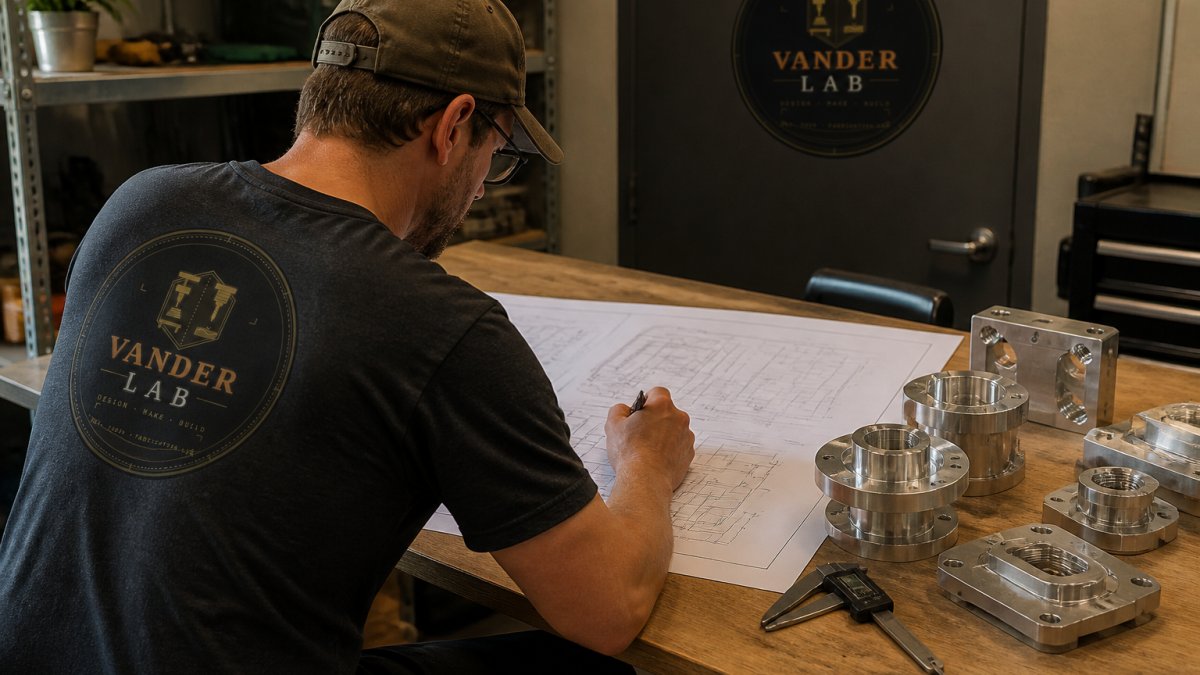
FreeCAD is open-source and fully featured for mechanical design, handling parametric modeling, direct modeling, assembly design, and technical drawings.
Fusion 360's free tier offers cloud-native design with strong collaboration: 3D modeling, assembly design, simulation, cloud storage, and cross-device access.
Tinkercad focuses on simplicity and browser-based access.
The real benefit of free tools: they let you validate your workflow before spending money. Discover how to convert rough sketches into proper CAD files using affordable or free tools.
Free and affordable CAD tools offer real capabilities, each with different strengths and tradeoffs.
| Tool | Best For | Key Tradeoff |
|---|---|---|
| FreeCAD | Mechanical design, parametric modeling | Steeper learning curve, community-driven support |
| Fusion 360 free tier | Cloud collaboration, rapid iteration | Personal use only; check revenue eligibility |
| Tinkercad | Learning, simple prototyping | Lacks depth for complex mechanical design |
| SolidWorks | Industry-standard manufacturing files | High cost, subscriptions in thousands per year |
CAD Software Startup Programs and Educational Discounts
Startup and educational programs are the most misunderstood line item in a CAD budget. The headline, "free for startups", is real, but the eligibility rules and exit conditions are where bootstrapped teams get burned.
How startup eligibility usually works
Most vendor startup programs are built around a few common levers. The exact numbers change, so treat these as categories to check on each vendor's current terms page:
- Company age. Many programs define a startup as a company incorporated within a set number of years. Once you cross that window, you graduate to commercial pricing whether or not your revenue has changed.
- Funding stage. Some programs cap eligibility by funding raised or by investor backing. Bootstrapped shops often qualify longer than venture-backed teams.
- Revenue threshold. A revenue ceiling is common, and it's often measured annually, so a strong first year can silently disqualify you mid-project.
A practical habit: before committing a project to a discounted license, save a dated copy of the terms page and note the eligibility criteria you relied on. Terms shift, and having the version you agreed to is useful if a vendor changes the rules mid-subscription.
The educational discount trap
Educational licenses are generous, often deeply discounted or free, but almost always tied to verified student or faculty status and typically non-commercial. Use one to build fluency, then move to a commercial license before your first paid deliverable; don't let a client project depend on a license that expires with your enrollment status.
The graduation plan every startup should write down
Rather than discovering the exit condition when it hits, build a graduation plan into your workflow from day one:
- Name the trigger. Write down the specific event that forces a paid seat, revenue crossing the program ceiling, the company aging out, a new hire needing access, or a client requiring a commercial license.
- Estimate the paid cost before you need it. Know what the commercial seat will cost per user per year so the jump is a planned expense, not a surprise.
- Test file portability early. Confirm your projects export cleanly to neutral formats (STEP for solids, DXF for 2D) so a future migration doesn't mean rebuilding models.
- Keep a neutral archive. Export a STEP or DXF copy of every production-ready design and store it outside the vendor's cloud, insurance against a licensing change, a price increase, or a discontinued tier.
What to verify on each vendor's page
When you evaluate a program, check these items rather than the marketing summary:
- The exact definition of "startup" the program uses, including age, funding, and revenue.
- Whether commercial use is permitted and under what conditions.
- Seat count and whether additional seats are available at a discount.
The eligibility mechanics, not the advertised discount, determine whether a program fits a startup's trajectory.
Weighing a discounted seat against a free open-source tool usually comes down to support and interoperability rather than price.
FreeCAD vs SolidWorks: When Each Makes Sense for Startups
The comparison between FreeCAD and SolidWorks comes up constantly among CAD software startups.
FreeCAD is open-source and free: you own the software, with no subscriptions or licensing restrictions.
SolidWorks is professional-grade and industry-standard, widely used in manufacturing and engineering.
For a startup deciding between them: if you're bootstrapped and learning, FreeCAD gets the job done.
A practical middle ground exists.
CAD Software for CNC Machining and 3D Printing Workflows
Your CAD choice matters most at the handoff, the moment a design leaves your screen and becomes a part. CNC machining and 3D printing each impose their own file-format, tolerance, and design-for-manufacture realities, and the software that fits one workflow doesn't always fit the other.
CNC machining: what your software must deliver
CNC work is subtractive, so the design has to survive being cut. That puts three demands on your CAD tool:
- Clean solid geometry. Your tool must export a watertight solid in a neutral format, STEP is the most widely accepted, with IGES and Parasolid as common alternates. A model with gaps, overlapping faces, or non-manifold edges will fail at the CAM stage regardless of how good it looked on screen.
- 2D drawing output. Machine shops often want a dimensioned drawing alongside the model. DXF is the standard exchange format for 2D profiles and cut paths. Confirm your tool exports DXF cleanly and that dimensions carry through.
- Tolerance and feature control. The software should let you specify tolerances, surface finish notes, and critical dimensions in a way that survives export. A model without tolerance callouts forces the shop to guess, and guessing is where rework starts.
A common pattern: designers send a beautiful 3D model with no drawing and no tolerance notes, and the shop either quotes conservatively or comes back with questions. The software is rarely the problem, the handoff package is.
3D printing: a more forgiving but different workflow
3D printing is additive, so the constraints shift. Your tool needs to export a mesh, STL is near-universal, with 3MF gaining ground for multi-material and color workflows. The design considerations differ from CNC:
- Wall thickness and minimum feature size must suit the printer and material, not the cutting tool.
- Support structures and orientation are decided at the slicer, but the model should be designed with print orientation in mind.
- Mesh quality matters. A coarse mesh can print with visible faceting; a model with self-intersections can fail to slice. Check your export settings rather than accepting defaults.
Because the workflow is more forgiving, many designers use simpler tools for 3D printing and reserve heavier parametric tools for machined or assembled parts. That's a reasonable split, the tool should match the manufacturing method, not the other way around.
Migration and interoperability: the question most guides skip
Changing CAD tools mid-project is where startups lose the most time. The core problem is parametric history: a model built with a feature tree in one tool rarely imports into another with that history intact. What usually survives is the geometry, not the recipe.
A practical migration approach:
- Export neutral formats first. STEP for solids and DXF for 2D are the lingua franca. Export every active project before you switch, and verify the exports open correctly in the new tool.
- Expect to rebuild history, not geometry. Plan for the new tool to receive a solid body you can modify, not a feature tree you can edit step by step. Budget time to re-feature critical parts if you need parametric control going forward.
- Keep a supplier-facing copy. Your manufacturing partner cares about the geometry and the drawing, not which tool produced them. A clean STEP plus a dimensioned DXF drawing is the handoff that works across tools.
- Test round-trips before you commit. Send a test file to your shop from the new tool and confirm it opens and measures correctly on their end. A five-minute test prevents a week of back-and-forth.
Matching the tool to the workflow
A simple way to decide: list the manufacturing methods you actually use, CNC routing, CNC turning, 3D printing, laser cutting, sheet metal, and the formats each requires, then check that your candidate tool exports all of them cleanly.
The software matters less than the handoff. A well-prepared file from a free tool beats a sloppy file from a professional one every time, and the preparation steps, clean geometry, correct format, clear tolerances, are the same regardless of which seat you're in.
Choosing CAD Software: Workflow, Team Size, and File Compatibility
The best CAD software for your startup depends on three things: your workflow, your team size, and what files your suppliers and partners need.
Workflow fit is the first filter. Are you doing 2D technical drawings, 3D part design, or both? Do you need simulation or just geometry?
Team size affects which tools work. Solo, you can use anything. Collaborating, cloud-native tools like Fusion 360 simplify file sharing and version control.
File compatibility is often the deciding factor. Ask your machine shop what they accept, ensure interoperability if you collaborate with SolidWorks engineers, and note that VanderLab's custom fabrication works with most standard formats, confirming upfront saves back-and-forth.
Getting Your Design Ready for Production
Choosing CAD software is half the work; the other half is preparing files that actually manufacture correctly.
Good CAD software gets you to a digital design.
We work with designers at every skill level.
Your CAD software choice matters, but it's not the bottleneck.
The right CAD software for your startup lets you design clearly, exports files your suppliers accept, and fits your budget.
Frequently Asked Questions
Is FreeCAD as good as SolidWorks for startup product design?
FreeCAD is free and handles both 2D drafting and 3D solid modeling, making it viable for many startups. However, SolidWorks excels at parametric modeling and has stronger industry integration. FreeCAD works well if you're prototyping locally or working with suppliers who accept standard file formats. The real question is whether your workflow and supplier requirements align with FreeCAD's capabilities, not whether one is universally 'better.' Many startups use FreeCAD successfully; others find the learning curve or file compatibility issues push them toward paid alternatives.
Can free CAD software export files for CNC machining?
Yes. FreeCAD, LibreCAD, and other free tools can export to formats like STEP, IGES, and DXF that most CNC service bureaus accept. Once you know your supplier's needs, free CAD software often works fine for producing machine-ready files.
What CAD software do most engineering companies use?
SolidWorks, AutoCAD, and Fusion 360 dominate professional engineering environments. However, 'most' doesn't mean 'required for your startup.' Many companies use these because they've invested in them over years, not because they're the only option. Startups often choose based on budget, learning curve, and specific workflow needs rather than industry convention. Your choice should match your actual requirements, not an industry average.
Are there CAD software programs with startup discounts?
Yes. Autodesk Fusion 360 offers free or heavily discounted access for startups, students, and non-commercial use through their startup program. Other vendors also offer educational or startup pricing. Check directly with software providers about eligibility requirements, which typically include revenue caps or startup status verification. These programs can significantly reduce upfront costs, but terms vary, so compare what each program actually includes before deciding.