 listicle
5 Best CAD Software for Beginners in Manufacturing
Table of Contents
- Why CAD Software Matters for Beginners in Manufacturing
- Quick Comparison: 5 CAD Tools for Manufacturing Beginners
- 1. Tinkercad: Free and Simple for Your First 3D Design
- 2. FreeCAD: Open-Source Power Without the Cost
- 3. SOLIDWORKS: The Professional Standard for Manufacturing
- CAD for CNC Machining: What You Need to Know
- How to Learn CAD Design: Getting Started the Right Way
- Choosing the Right Tool for Your Manufacturing Work
- Frequently Asked Questions
Last Updated: October 20, 2026
Why CAD Software Matters for Beginners in Manufacturing
If you're stepping into manufacturing for the first time, CAD software is your bridge between an idea and a finished part. Whether you're designing a custom bracket for a CNC machine, prototyping a 3D-printed component, or creating technical drawings for production, the right tool makes the difference between a smooth workflow and hours of frustration.
The challenge isn't finding CAD software, it's finding the right fit for where you are now. Professional-grade tools like SOLIDWORKS feel overwhelming, free options can lack manufacturing precision, and cloud solutions sometimes struggle with the file handoffs manufacturers depend on.
Below, we cover the 5 best CAD software for beginners in manufacturing, what each does well, and how to match one to your workflow.
Quick Comparison: 5 CAD Tools for Manufacturing Beginners
| Software | Free Tier | Best For | Learning Curve | Manufacturing Focus |
|---|---|---|---|---|
| Tinkercad | Yes, full featured | First 3D design projects | Very easy | Basic prototyping |
| FreeCAD | Yes, open source | Budget-conscious designers | Moderate | 3D modeling, parts |
| SOLIDWORKS | No | Professional manufacturing work | Steep | Advanced assemblies |
| Autodesk Fusion | Limited free tier | Teams needing cloud collaboration | Moderate | 3D design and CAM |
| Onshape | Limited free tier | Remote collaboration workflows | Moderate | Cloud-native 3D modeling |
1. Tinkercad: Free and Simple for Your First 3D Design
Tinkercad is where most people start learning 3D design. It's browser-based, completely free, and built for beginners who've never opened CAD software. No downloads or system requirements, just log in and start building.
The interface is block-based: drag shapes onto a canvas, resize, combine, and export. Someone with zero CAD experience can design a simple bracket or enclosure in under an hour, which makes Tinkercad ideal for testing an idea before committing to complex software.
What makes Tinkercad work for manufacturing beginners is its export flexibility. You can save designs as STL files, the standard format for 3D printing and CNC routing, then send them to a service like VanderLab and get a finished part.
The honest limitation: Tinkercad doesn't handle complex assemblies, parametric modeling, or the precision constraints professional manufacturing demands. If your design needs tolerance stacking, material properties, or intricate mechanical relationships, you'll outgrow it quickly. It's a learning tool first, a production tool second.
2. FreeCAD: Open-Source Power Without the Cost
FreeCAD is the professional's free alternative: open-source software for Windows, Mac, and Linux with real parametric 3D modeling. Unlike Tinkercad, it gives you constraint-based design, assembly tools, and parts you can modify without starting over.
The learning curve is steeper, the interface isn't as polished as commercial tools, but once you understand parametric modeling, you have a tool that handles production-level designs without subscription fees.
For small shops and makers working on custom parts, FreeCAD is genuinely powerful. You can design a part with specific dimensions, build an assembly from multiple components, and export as a STEP file, the format most CNC machines and 3D printing services expect.
The tradeoff: FreeCAD's community support is smaller than commercial alternatives, and some advanced features require plugins, so solving a roadblock takes more digging than with SOLIDWORKS or Fusion.
3. SOLIDWORKS: The Professional Standard for Manufacturing
SOLIDWORKS is what most manufacturing professionals use. If your parts need to work in production environments, pass engineering reviews, or integrate into larger assemblies, it's the industry standard, built for complex 3D modeling, precise assemblies, simulation, and direct CAM integration.
It handles parametric design with rigid constraints: build a part once, change a single dimension, and everything updates automatically. Design a bracket for one machine, then adapt it for another by adjusting three parameters instead of redesigning from scratch.
SOLIDWORKS also integrates directly with manufacturing tools: run simulations to test stress, generate technical drawings with automatic dimensions and tolerances, and export files CNC machines and 3D printers read immediately.
The reality: SOLIDWORKS isn't for beginners in cost or complexity. It requires a learning investment and a significant financial commitment, but if you're serious about manufacturing design, it pays for itself through efficiency and professional capability.
CAD for CNC Machining: What You Need to Know
CNC machining is where CAD stops being a drawing exercise and becomes instructions a machine follows.
The core difference is tolerance control. A 3D printer can often handle a part off by a few tenths of a millimeter; CNC work frequently calls for tolerances in thousandths of an inch, especially on mating features, press-fit holes, and anything aligning with an existing assembly.
A practical beginner workflow looks like this:
- Model the part with manufacturing intent. Design the geometry as it will be cut, not as a solid block. Think about tool access, corner radii, and how the part will be held during machining.
- Apply dimensions and tolerances in CAD. Use the software's dimensioning tools to lock critical features. FreeCAD's TechDraw workbench and SOLIDWORKS' drawing environment both let you place tolerances on a formal drawing.
- Export in a format the shop can read. STEP is the most reliable neutral format for 3D geometry because it preserves solid models and design intent. IGES is a common fallback for older systems. STL is acceptable for 3D printing but loses precision on curved surfaces and is a poor choice for CNC work that needs exact dimensions.
- Send the file with a material and finish note. The programmer generates toolpaths from your geometry, but your note about material, finish, and critical features prevents assumptions.
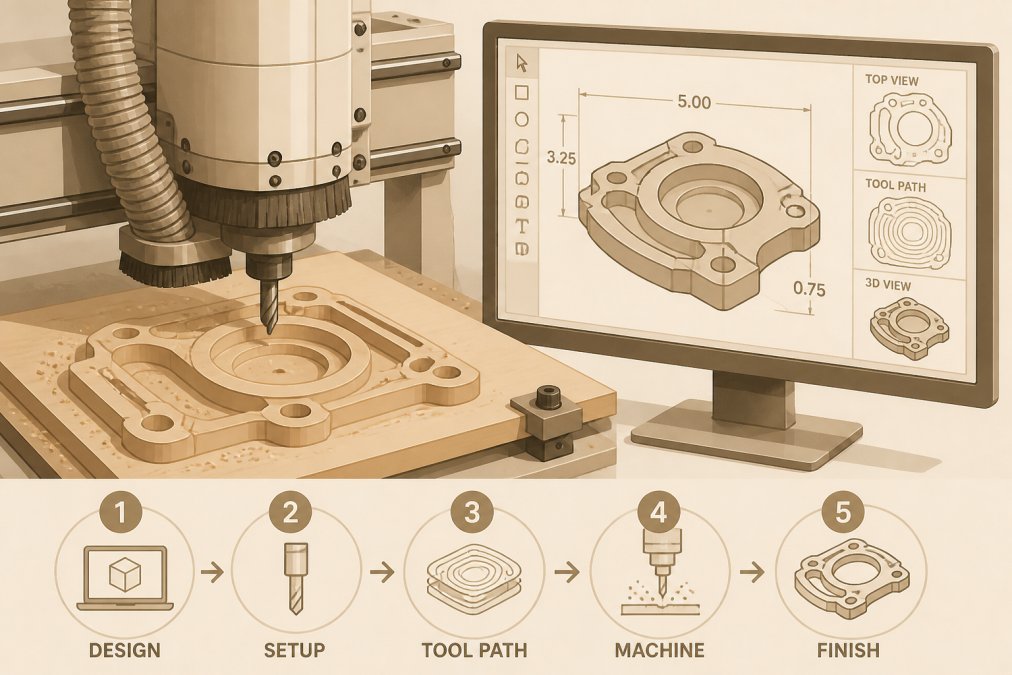
FreeCAD and SOLIDWORKS both handle this handoff well. FreeCAD's Part Design and TechDraw workbenches build a parametric solid and produce a dimensioned drawing without leaving the software; SOLIDWORKS adds tighter CAM and simulation integration, which matters for stressed or high-volume parts.
Beginners often design a part, export it, and discover at the machine that a hole is undersized or a corner can't be reached by the tool. Designing with the cut in mind from the start and exporting STEP rather than STL avoids most of those surprises.
How to Learn CAD Design: Getting Started the Right Way
Learning CAD is a skill built through repetition, not talent. Most beginners get comfortable with basic 3D modeling in 20 to 30 hours of focused practice, but the order matters as much as the hours. A manufacturing-focused path moves from simple solids to dimensioned parts to production-ready files.
The foundation is three concepts: sketch, extrude, and constrain. A sketch is a 2D profile, a rectangle, circle, or slot. An extrusion turns that profile into a 3D solid. Constraints lock dimensions and relationships so the model stays precise when you change a value.
A short progression that works for manufacturing beginners:
- Week one: simple solids. Design a box, then a box with a hole, then a bracket with two mounting holes. The goal is to get comfortable with sketches and extrusions without worrying about precision.
- Week two: dimensioned parts. Rebuild the bracket with explicit dimensions and constraints. Change one dimension and confirm the model updates correctly. This is where parametric thinking clicks.
- Week three: assemblies and tolerances. Model two parts that fit together, such as a lid and a base, and add clearance so they assemble without force. This teaches you to design for real-world fit rather than idealized geometry.
- Week four: production handoff. Export your part as STEP, open it in a viewer, and check that dimensions survived the export. If you have access to a 3D printer or a fabrication service, have the part made and measure the result against your model.
Practice projects that teach manufacturing thinking include a tool holder sized to a specific tool, an enclosure with a snap-on or screwed lid, and a replacement bracket modeled from measurements of the broken original.
For Tinkercad, the first week is enough to get oriented, but its block-based approach doesn't teach parametric constraints, so plan to move on once you understand basic solids. For FreeCAD, structured tutorials that walk through a complete part beat abstract lessons; the software's documentation and community videos cover the Part Design workflow step by step.
The most effective strategy is to design something you actually need, a bracket for your workshop, a holder for a specific tool, an enclosure for a project. The software's features start making sense when attached to an outcome.
Choosing the Right Tool for Your Manufacturing Work
Your choice comes down to three questions: How complex are your designs? Do you need to collaborate? What's your budget?
For simple parts, brackets, enclosures, basic shapes, Tinkercad or FreeCAD gets the job done. Both are free, both export to formats fabrication services understand, and both are fast enough for iterating on ideas.
For complex assemblies with many parts that must fit together precisely, or when you need simulation and stress testing, SOLIDWORKS or Fusion are the right choice. They cost more but handle manufacturing complexity simpler tools can't.
If your team is spread across locations and needs real-time collaboration, Autodesk Fusion or Onshape shine. Both are cloud-based, so multiple people can work on the same file simultaneously, eliminating the email-back-and-forth that slows traditional CAD.
The honest truth: most manufacturing beginners start with Tinkercad or FreeCAD, learn the basics, then move to SOLIDWORKS or Fusion once they understand what they're doing. You learn faster on simpler tools, then graduate when you need professional capabilities.
When you're ready to move from design to fabrication, VanderLab handles the technical handoff. Send your STEP or STL file, specify material and finish, and we'll turn your design into a finished part. You focus on the design; we handle the precision manufacturing.
Choosing the right 5 best CAD software for beginners in manufacturing depends on where you are in your learning journey and what you're building. If you're ready to turn your CAD designs into precision parts, reach out for a custom quote and let's bring your idea to life.
Frequently Asked Questions
What is the easiest CAD software for beginners to learn?
Tinkercad and FreeCAD are the easiest CAD programs for beginners because they have simple interfaces and focus on core 3D modeling concepts. Tinkercad is completely free and web-based, making it accessible without installation. FreeCAD is open-source and free, with a steeper learning curve but more manufacturing-relevant features. Both let you practice fundamental skills before moving to professional tools like SOLIDWORKS.
Is it difficult to learn CAD for CNC machining?
Learning CAD for CNC machining is not difficult if you start with the right software and approach. Begin with tools designed for beginners, then progress to manufacturing-focused software. The key is understanding how to create precise sketches, apply constraints, and dimension parts correctly. Most beginners grasp the basics in a few weeks of consistent practice, and CAD skills improve rapidly once you work on real projects.
Which CAD software is most commonly used in small-batch manufacturing?
SOLIDWORKS and Autodesk Fusion are the most widely adopted CAD tools in small-batch manufacturing because they handle complex assemblies, integrate with CAM workflows, and are recognized across the industry. FreeCAD is gaining traction among budget-conscious makers and small shops. The choice depends on your budget, the complexity of your parts, and whether you need tight integration with CNC or 3D printing services.
Can I use free CAD software for professional manufacturing work?
Yes, you can use free CAD software like FreeCAD for professional manufacturing work, especially for simpler parts and designs. Many small makers and hobbyists produce quality parts using open-source tools. However, professional manufacturing environments often standardize on paid software like SOLIDWORKS for compatibility, support, and advanced features. Your choice should match the complexity of your projects and your budget.